How to upload pictures to Impulse using a Sony camera

In this guide we'll walk through how to configure your Sony camera to upload your pictures to Impulse in real time.
Overview
Most Sony cameras let you connect your camera to a Wifi (which can be your phone's wifi hotspot) and transfer them to the Impulse cloud using our FTP server. Here are the step we'll walk through in this article:
Connecting your camera to a wifi network
Configuring the Impulse FTP server on your camera
Enabling auto-transfer to unlock real time photo delivery for your attendees
Camera compatibility
Sony cameras can get updates and models come out all the time, so we cannot provide a list of compatible cameras, give it a try on your camera to check if you have compatibility. If you're missing some of the options on this guide, make sure your camera's firmware is up to date. some menus might be slightly different on some models like the Sony A9, but you should be able to find equivalent options.
If your camera is not compatible don't worry! You can always upload your picture from our web interface, setup a Google Drive, Dropbox folder or do regular SD card drops to the server. Checkout this guide to know more.
Before we start
There are a few things you might need to adjust in your camera settings before we start:
Make sure to shoot in JPEG, the Impulse server will not be able to read RAW files.
If you are shooting only for Impulse we recommend setting your camera to take only JPEG files ~10MB or less
If you require RAW or big JPEGs for post-processing, the camera can automatically ignore RAW files so you can shoot in RAW+JPEG. Be mindful of upload speed: shooting big JPEGs will take significantly more time to upload.
Make sure your camera has at least 1 SD card inserted
Make sure the venue you're going to be shooting in can provide wifi, or figure out how to enable wifi hotspot on your phone
Configuring your camera
Connecting to wifi
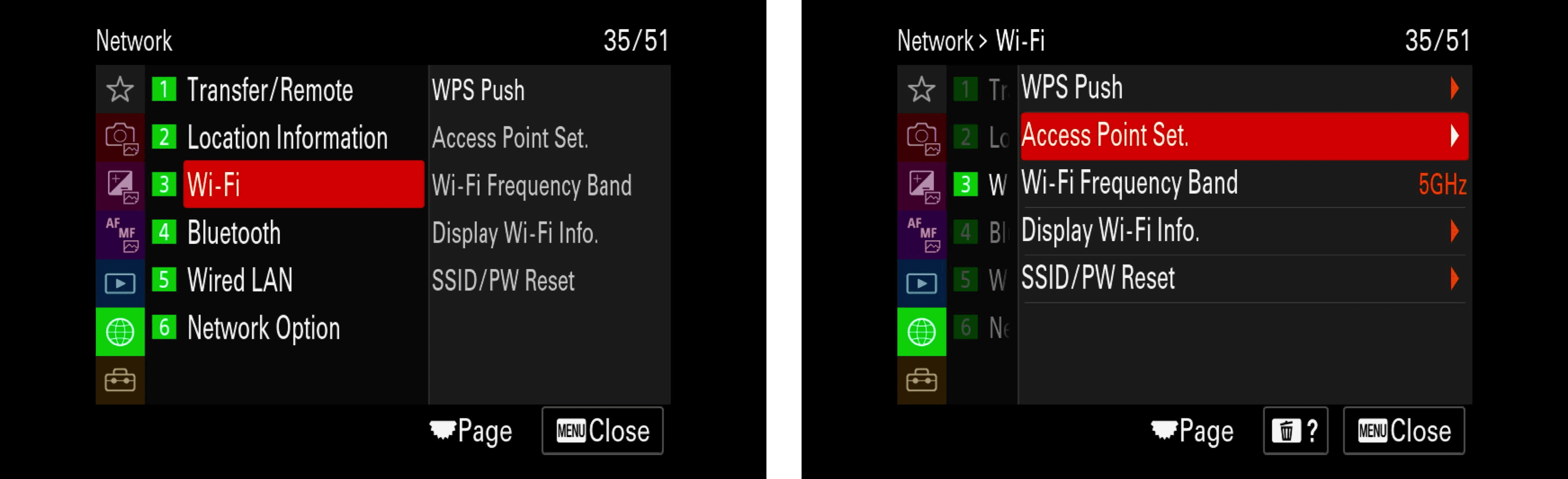
Press the "Menu" button on your camera, go to the "Network" tab, click "Wi-Fi" then "Acces Point Set."
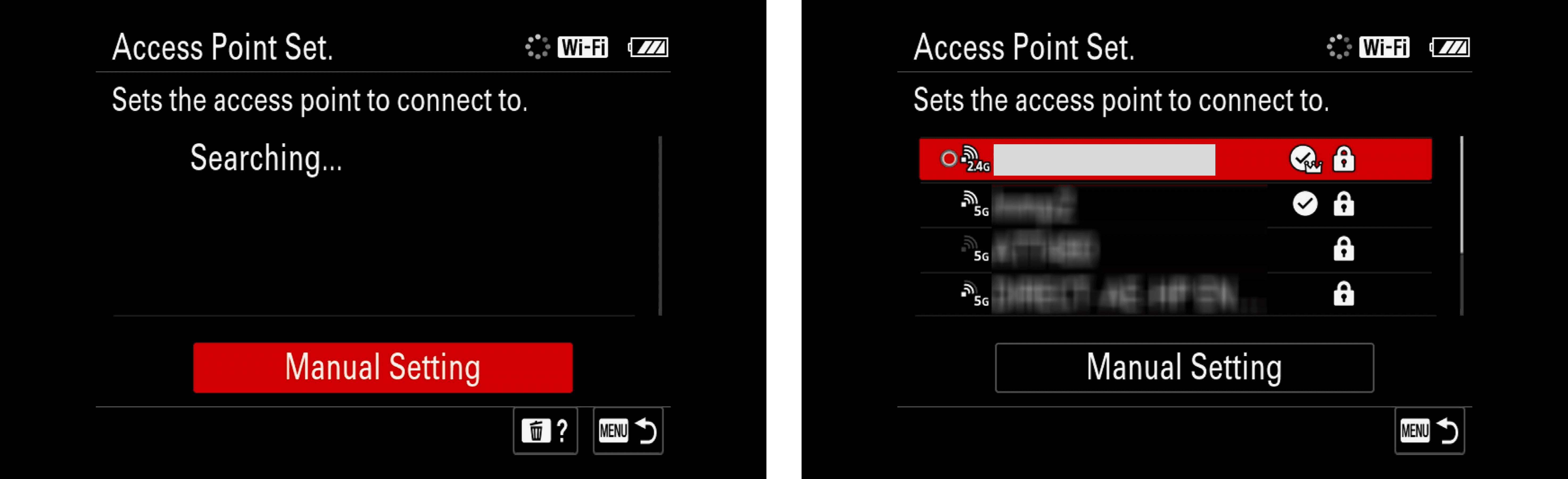
The camera will start looking for nearby wifi networks to connect to. Find your network in the list and click it. Enter the password to connect.
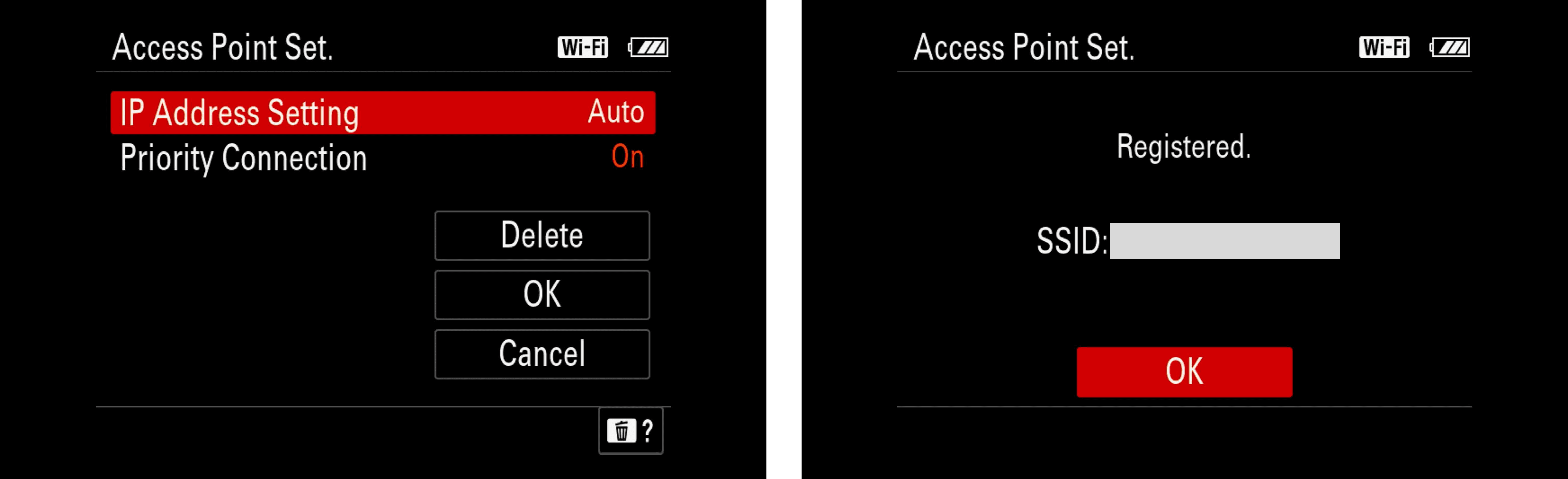
For some connections, you might need to set the Frequency Band to match what the WiFi you're connecting to such as 2.4GHz or 5GHz.
Configuring the Impulse FTP server
Once wifi is connected, head back to the menu and select "Transfer/Remote" then "FTP Transfer Func"
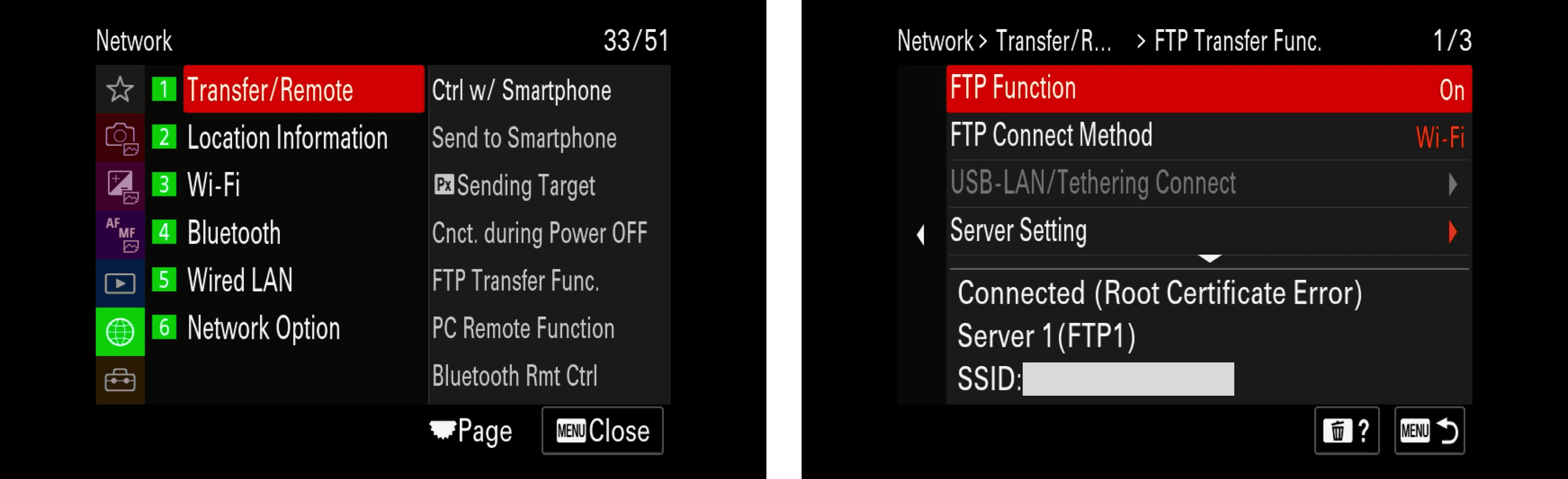
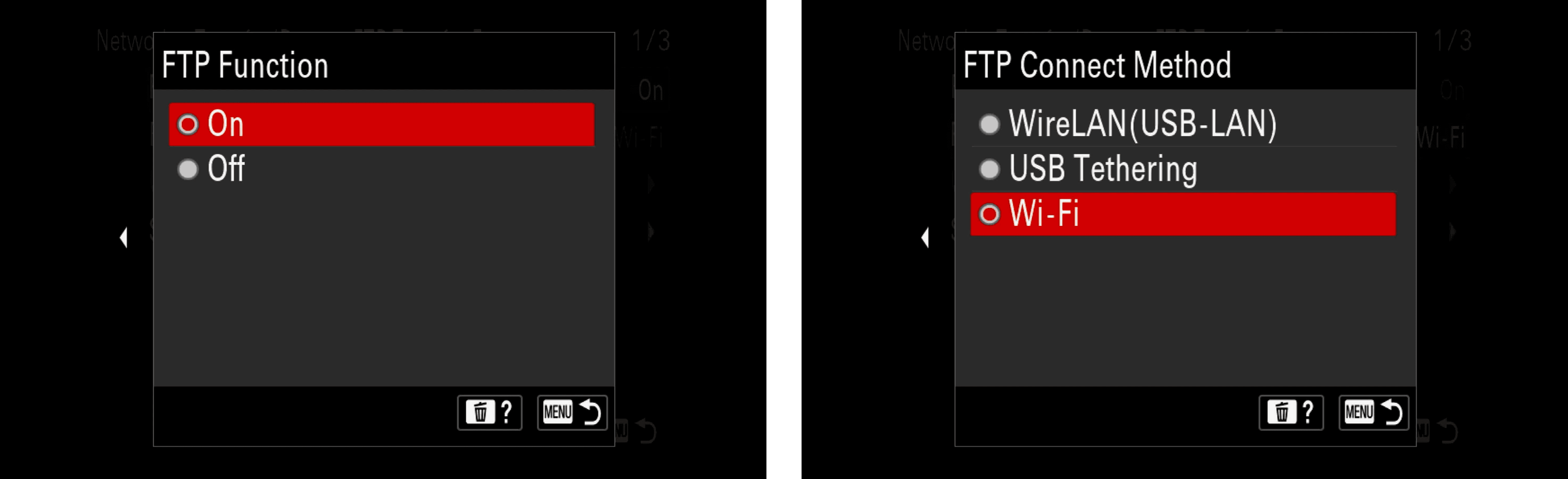
Set "FTP Function" to "On" and "FTP Connect Method" to "Wi-Fi"
Then in "Server Setting" you will see a list of up to 9 server configurations, select one that you're not using (if you've never used FTP just select the first one)
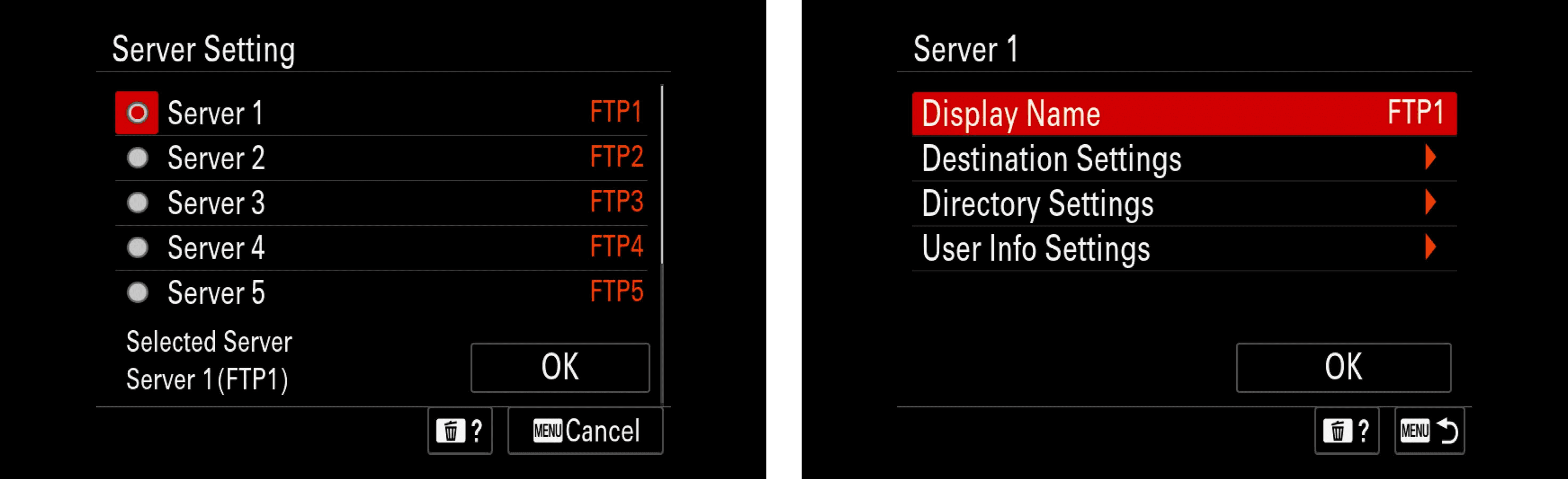
Display name is optional but you can name it "Impulse". In "Destination Settings" enter the following information:
Host Name: ftp.impul.co
Secure Protocol: Off
Root Certificate Error: Connect
Port: 21
Note: On Sony cameras the URL of the server is slightly different than usual: FTP.impul.co instead of SFTP.impul.co
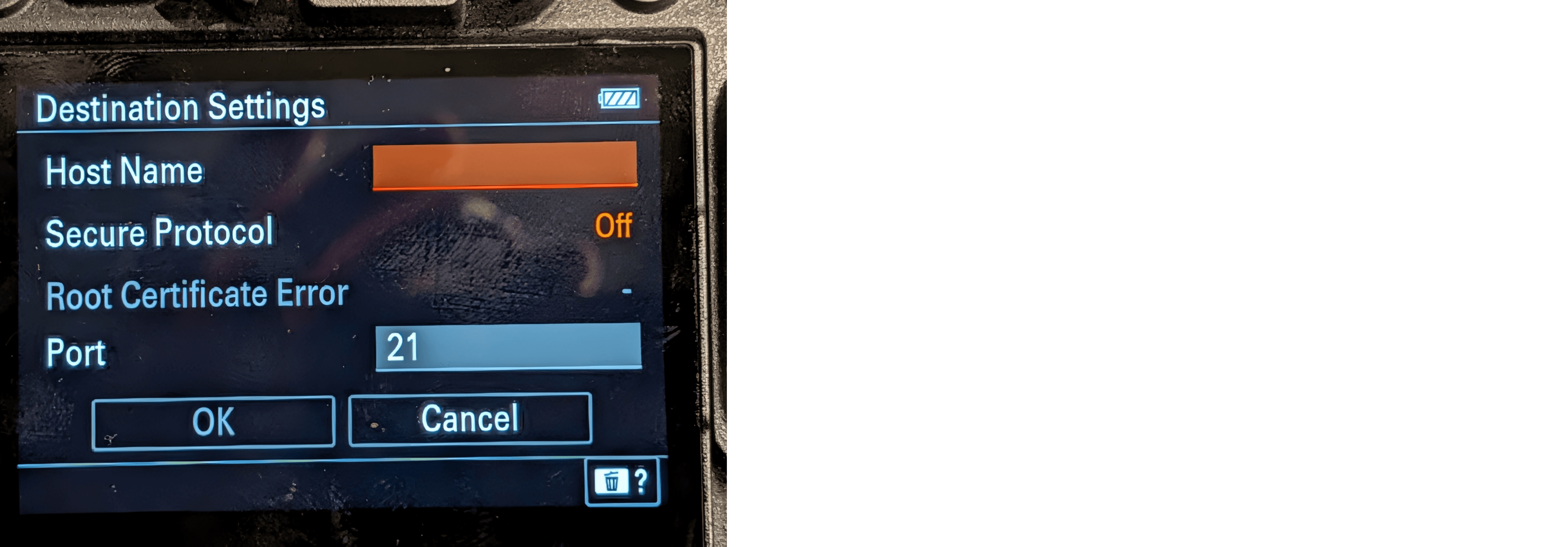
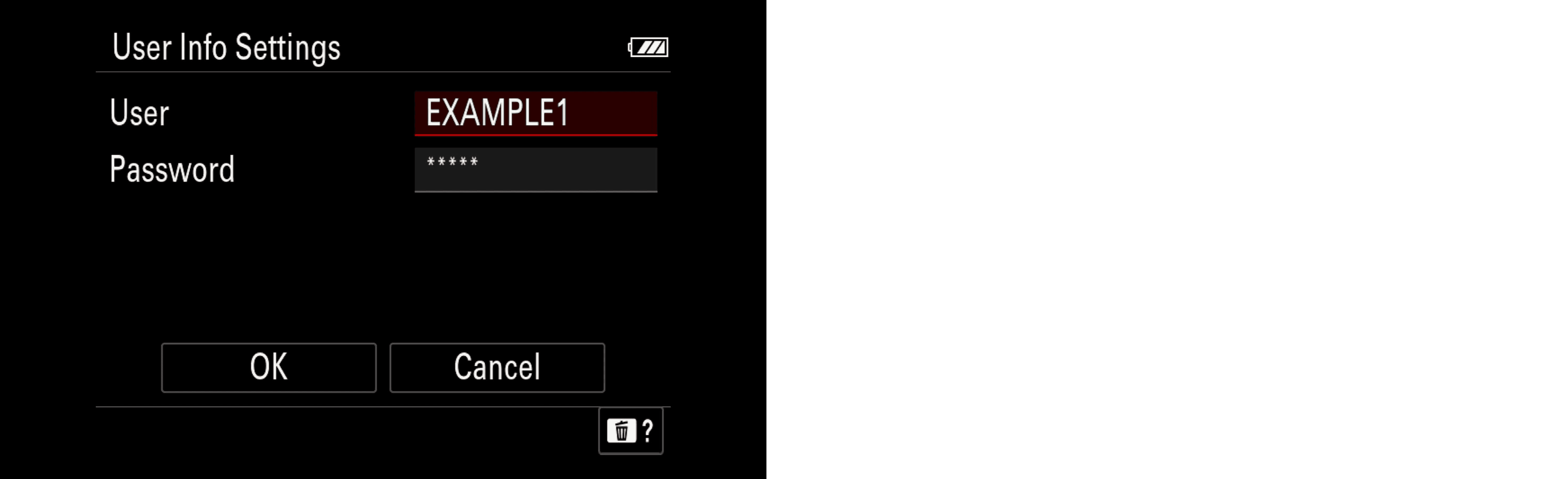
Click "OK", then in the "User Info Settings" you can enter your Impulse credentials:
User: {var:sftpUser}
Password: {var:sftpPassword}
Note: The credentials for SFTP.impul.co and FTP.impul.co are the same
Enabling Auto-Transfer
Go back to the "FTP Transfer Func" menu and scroll down to find "Auto FTP Transfer". Enable it and the camera will automatically transfer images as soon as they are captured
Note: Double check you're taking JPEG files, Impulse will not process RAW files
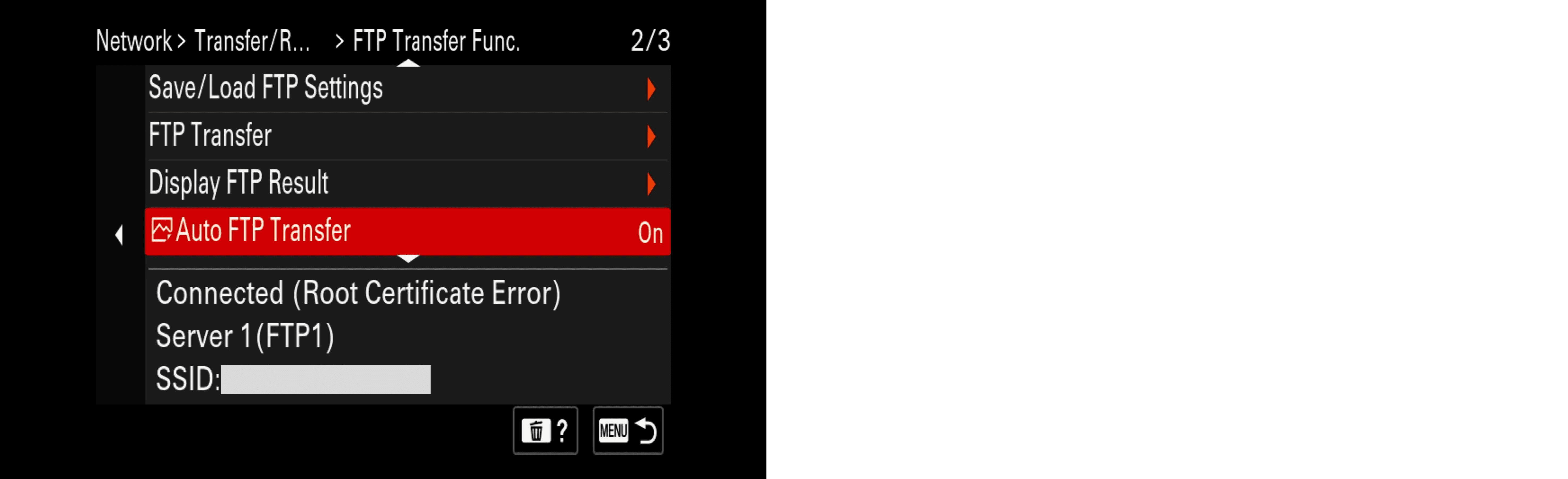
To double check that everything is working correctly, take a few pictures, then you can check the upload status in the "FTP Transfer Func" menu
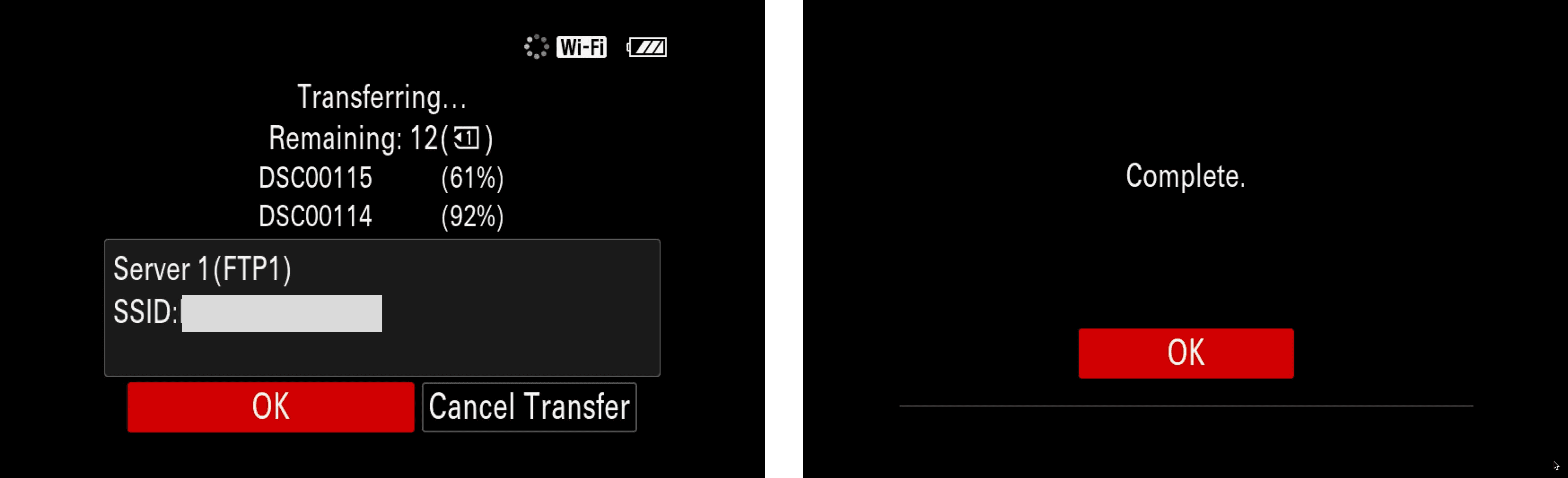
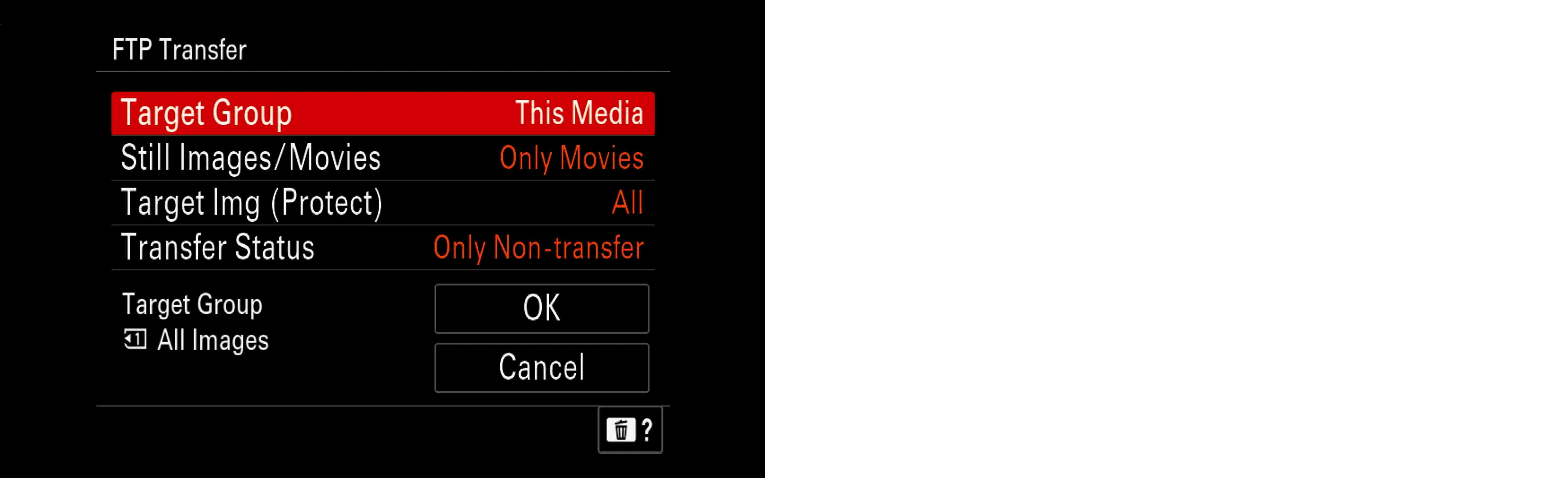
You can also upload images taken before by going to the "FTP Transfer" menu and configuring a "Target Group"